Pin options
Use the Pin options view to select how the user signs in using a pin code.
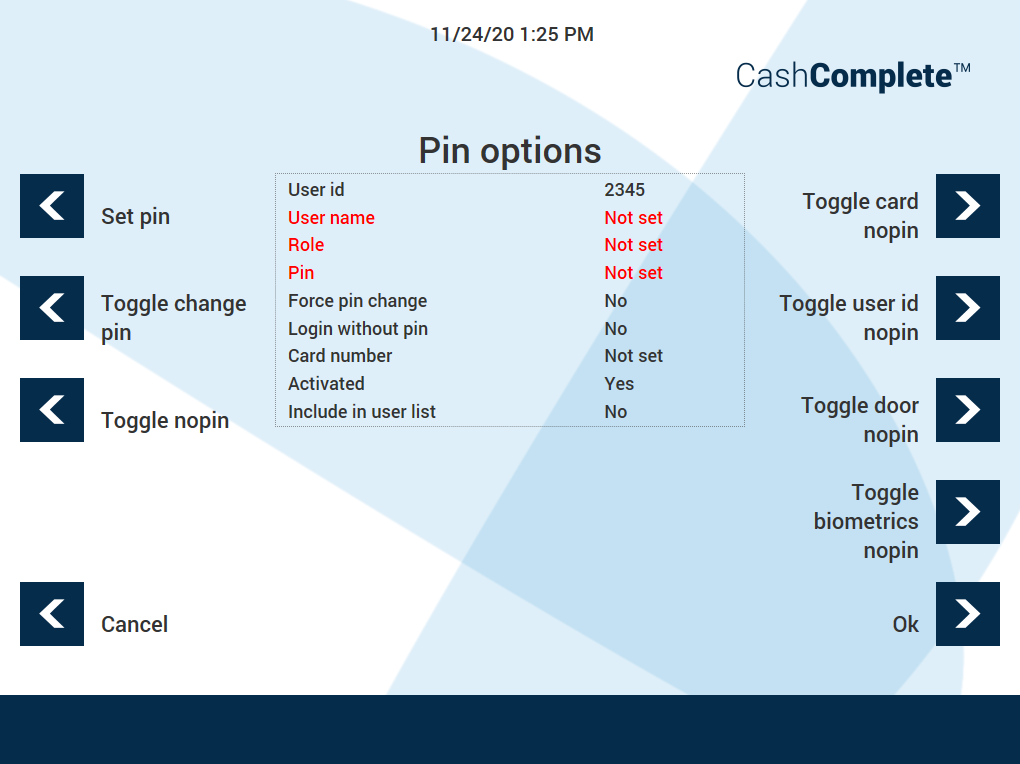
UI item | Description |
|---|---|
Set pin | Opens a view where you enter the 4-digit pin code the user must enter to sign in. |
Toggle change pin | Select to force the user to change the pin code when signing in for the first time. |
Toggle nopin | Select to configure if the user can sign in without a pin code. The options are:
|
Toggle card nopin | Select to configure if the user only needs to use a card to sign in or also needs to enter a pin code. The options are:
|
Toggle user id nopin | Select to configure if the user only needs to use a user ID to sign in or also needs to enter a pin code. The options are:
|
Toggle door nopin | Select to configure if the user only needs to use a door to sign in or also needs to enter a pin code. The options are:
|
Toggle biometrics nopin | Select to configure if the user signs in using only biometrics or also needs to enter a pin code. The options are:
|
Cancel | Select to ignore the changes and return to the previous view. |
Ok | Select to save the changes and return to the previous view. |