Connect on-Device Administration
In Connect on-Device you can perform a number of administrative tasks, such as restarting the computer, viewing the system events log, and clearing errors.
Operating the machine
Instructions on how to operate the machine are shown on the touch screen.
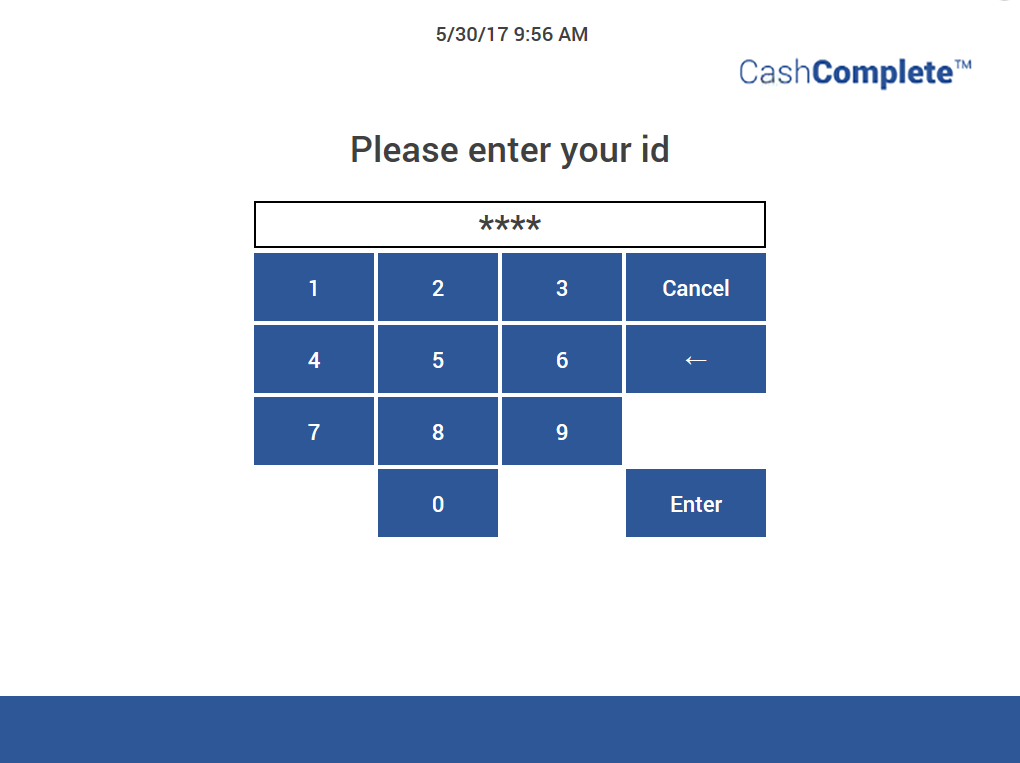
When the system is in a state where it cannot be used, the front screen displays an out of use message, for example, “Not available. Service ongoing, please wait”.
To operate the machine, follow the instructions shown on the touch screen.
Select the buttons on the touch screen to operate the machine.
Note
You can undo mistakes by tapping the Clear button, or Cancel to start over.
Note! The appearance of the display may be different from the examples in this guide. The reason is that each system can be customized.
Shutting down and restarting the computer
Caution
If you shut down using the main switch, the computer file system might become corrupt and make the computer unusable.
Log in as an administrator.
Enter the Operator view by selecting Administration and then Operator view on the touch screen.
Select Exit Program to close Connect on-Device.
When Close application? is displayed, select Yes.
Select Enter to return to Windows Desktop. You can use common Windows commands, such as Restart and Shut down.
When the computer is shut down, turn off the power using the main switch.
For information on optional ways to shut down the computer, see Shutting down the computer (optional ways).
Shutting down the computer (optional ways)
Caution
If you shut down using the main switch, the computer file system might become corrupt and make the computer unusable.
If normal shutdown does not work, optional ways of shutting down are listed below. If the first option does not work, go to the next option in descending order.
Open the Operator view.
Use a service keyboard and press alt + TAB to toggle between the open windows.
Release the alt key when the status window is highlighted.
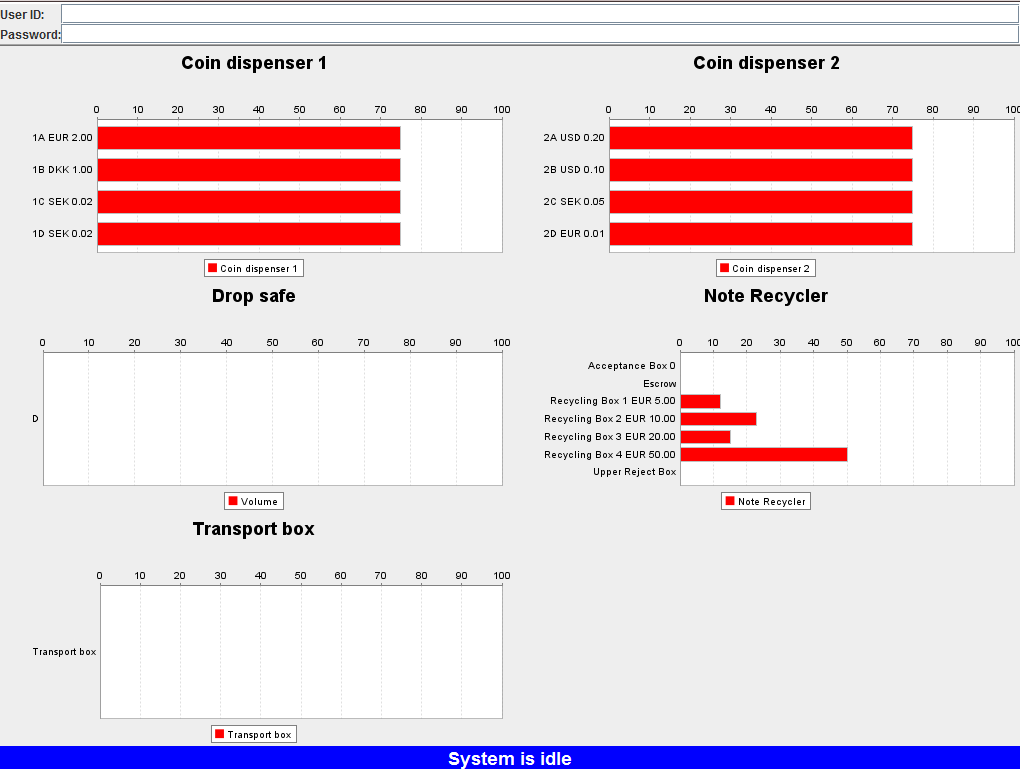
Enter the Administrator ID and press the tab key to move the cursor to the Password section.
Using the keyboard, enter the password and then press Enter to open the Operator view.
Select Exit Program to close Connect on-Device.
Close application? is displayed, select Yes.
Press Enter to return to Windows Desktop. You can use common Windows commands, such as Restart and Shut down.
When the computer is shut down, turn off the power using the main switch.
If you can't toggle between open windows, press ctrl+alt+del.
Select Task Manager.
Highlight Browser-FRONT and select End Task. This processes may take some time.
When the computer is shut down, turn off the power using the main switch.
If Windows Task Manager has not started after several minutes, press ctrl+alt+del to get to the Windows Task Manager again.
Select Exit Program.
When the computer is shut down, turn off the power using the main switch.
If none of the above work, try the On/Off button on the front of the computer. Quickly press the button.
When the computer is shut down, turn off the power using the main switch.
If none of the above work, press the On/Off button on the front of the computer.
Hold down the button for at least three seconds.
When the computer is shut down, turn off the power using the main switch.
Important
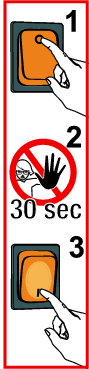
As a very last resort, reboot the machine by pressing the lit main switch.
Open the upper service door and press the lighted main switch.
Caution
Wait for 30 seconds before restarting the computer and the machine.
Opening the Operator view
Prerequisites: You need an account with the following permissions:
Use the Operator view to complete all administrative tasks on the machine.
OPERATOR_VIEW
SERVICE_MODE
Select Start in idle mode on the touch screen.
Sign on with an account that has the required permissions.
Select Administration.
Select Operator view.
Bring out the service keyboard and press alt + TAB to toggle between the open windows.
Release the alt key when the Status window is highlighted.
Enter the Administrator ID then press the TAB key to move the cursor to the Password section.
Using the keyboard, enter password, then press Enter to open the Operator view.
Opening the system log (View Log)
You view the system log to see events that have occurred in the system during a specified period of time. The latest events are displayed at the top of the list. You access the View Log by clicking the View Log button.
Tip
For information on how to open the Operator view, see Opening the Operator view.
Open the Operator view.
Select View Log.
Printing a receipt copy of an event
From the system log (View Log), you can print a copy of a receipt in the events list.
Tip
For information on how to open the Operator view, see Opening the Operator view.
Open the Operator view.
Select View Log.
Select the event.
Select Print Receipt.
Creating an error report
From the system log (View Log), you can create an error report of the Connect on-Device system. The error report file is created in the Connect on-Device installation folder.
Tip
For information on how to open the Operator view, see Opening the Operator view.
Open the Operator view.
Select View Log.
Select Create System dump.
Resetting and clearing errors
When you have resolved an error, you need to reset and clear the error.
Open the Operator view.
Select Device status.
Select Status to see more information.
Select Reset for the attended device.
Select Done.
In the Operator view, select Clear errors.
When the errors have been cleared, select Logout to return to operative mode.
Toolbox
Toolbox_ is a permission in the Connect on-Device system. You can test the functionality of each individual device by clicking the Toolbox button next to the device in the Status for devices list.
Note
You access the Status for devices list by selecting Operator view > Device Status > Status.
When testing the coin dispensers, note that the dispensed amount does not change the count.
The Toolbox_ permission has the following additions:
EJECT_CARD
TEST_DISPENSE
RESET
OPEN_SAFE_DOOR
OPEN_CLOSE_SHUTTER
READ_CARD
UNLOCK_CASSETTE
Note
UNLOCK_CASSETTE has a second addition.
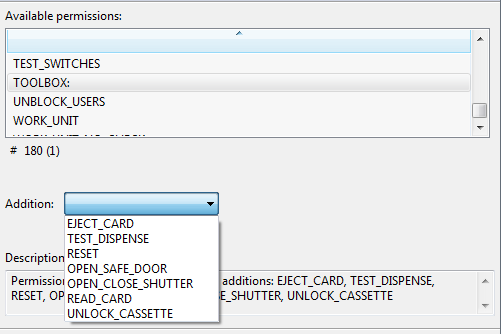
TOOLBOX _ is a permission with additions
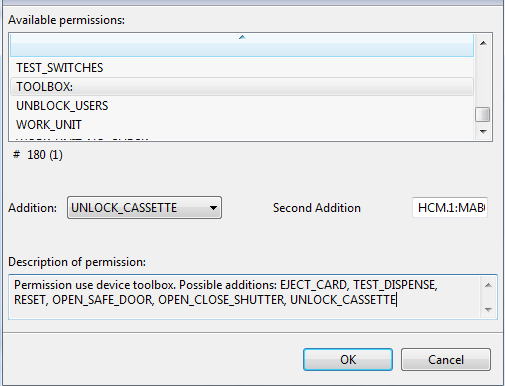
Second addition to UNLOCK_CASSETTE
Reading information from the card reader Toolbox
The card reader Toolbox reads information about the card.
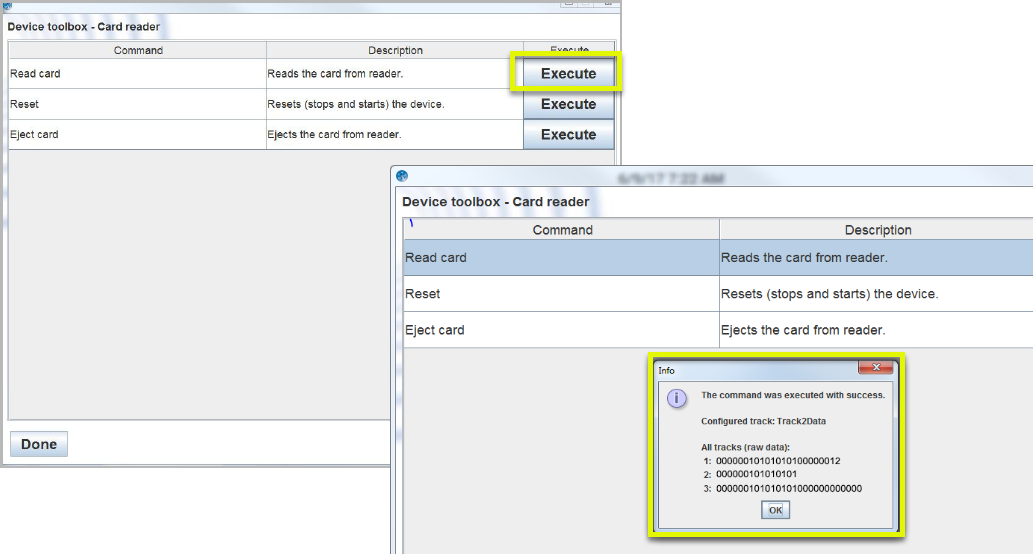
In the Device toolbox, select the Toolbox button for the card reader.
Select the Execute button on the Read card row.
Insert the card into the card reader.
Information about the card is displayed.