Searching for texts
Use the Texts view, to add and edit texts that are shown in the Connect on-Device user interface for a specific language, country, or variant. To make it easier to find the text you want to edit, use the filter.
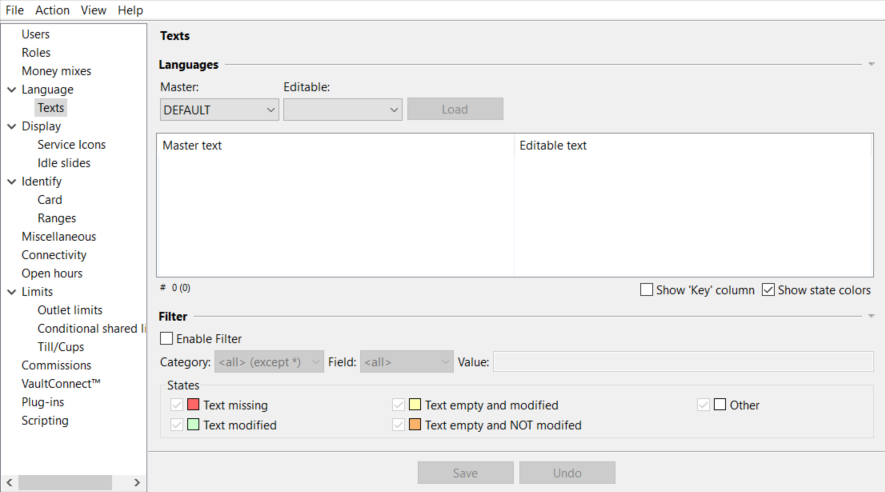 |
In the navigation pane, expand Language and select Texts.
In the Master box, select the language you want to search in. By default, English is the master language.
Select the Enable filter box.
To narrow your search, select the Category you want to filter on—for example, User view or Receipts.
To narrow your search, select the Field you want to filter on. The options are Master text, Editable text, or a key that matches the value in the Value box.
To narrow your search, in the Value box, select a value to filter on. For example, 'Other'.
Select a text state to filter on to narrow your search even further.
Note
If you know that the English (=Master text) word you want to edit is 'Other', you can select 'Master text' in the Field box to narrow the search result.
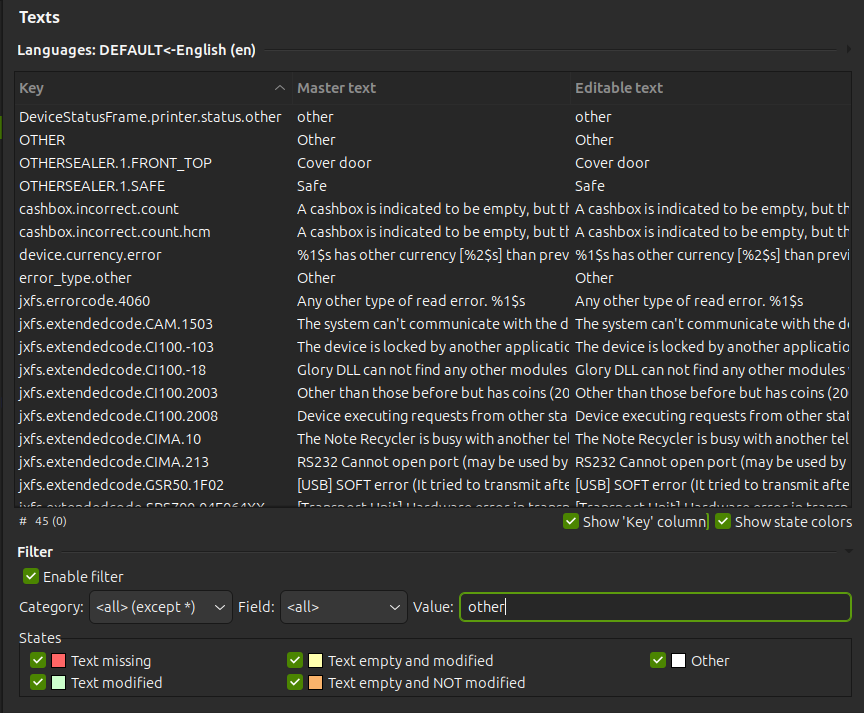
The example shows a search for the value 'other'