One-time access (OTA) code authentication
Note
Available from Connect on-Device version 3.25.0.
A one-time access code (OTA) is a code that the user scans or enters to access a device.
OTA code authentication was primarily intended as a standalone authentication method, allowing users to log in without having an account on the device they accessed. This has evolved into several different use cases.
There are two main options when it comes to OTA:
OTA QR codes
This method uses QR codes and requires the device to be equipped with a 2D barcode scanner.
OTA shortcodes
This method uses 6-digit codes generated by Connect. Currently, only one algorithm of shortcodes is supported, but this could be easily extended.
The primary use case is to limit or control access for individuals whose access would have critical implications, such as CIT or FLM teams, who would gain access to all cash in a device.
To control who can generate or request an OTA code, you need to set up a process. This process could allow, for example, a back-office employee to generate shortcodes. You can also have a dedicated application with additional authorization logic that decides if a particular user can request an OTA code at a particular time. We recommend that you keep logs when access is granted.
As the name indicates, an OTA code only works once. A new OTA code must be generated the next time the user needs access. OTA code can be used only on the particular machine for which it was generated.
These are the supported types of OTA codes
Authentication type | OTA QR code | OTA Shortcode |
|---|---|---|
Stand-alone | Yes | Yes |
Multifactor | Yes | Yes |
Four-eye | Yes | Yes |
Before starting to use any of the methods, you need to enable the function in both Connect on-Device Studio and Connect.
OTA QR code - Stand-alone authentication
Upon sign-in, this option provides information about the user in the QR code itself.
This option requires a 2D QR code scanner connected to the machine.
Open Connect on-Device Studio.
Select the Identity tab.
Select OTA QR code.
Select Save.
OTA QR code - Multifactor (MFA) authentication
This option enables OTA QR code as a multifactor authentication method. That is, the user must scan a QR code after performing a standard authentication process to be able to sign in to Connect on-Device and perform any actions.
The user and role embedded in the QR code must match the user signed in to the device.
This option requires a 2D QR code scanner connected to the machine.
Important
To configure multi-factor authentication, you must give the user role the REQUIRES_OTA_MFA permission.
Open Connect on-Device Studio.
Select the Identity tab.
Select OTA QR code as MFA.
Select Save.
OTA QR code - Four-eye authentication
This option enables OTA QR code as a four-eye authentication method. That is, two users must provide their credentials and scan QR codes to sign in to Connect on-Device and perform any actions.
This option requires a 2D QR code scanner connected to the machine.
Important
To configure four-eye authentication, you must give the user role the LOGIN_FOUR_EYES permission.
To properly use the four-eye login, you need to have at least 2 users assigned to the role with the LOGIN_FOUR_EYES permission. It can be either the same role or different roles.
In case of using 2 different roles, remember to add REQUIRES_OTA_MFA permission as well. If you don't do this, only one user will be asked to perform multi-factor authentication.
Users with this permission must scan an OTA QR code right after performing a standard authentication process to be able to sign in to CoD and perform any actions.
Open Connect on-Device Studio.
Select the Identity tab.
Select OTA QR code.
Select Save.
OTA Shortcode - Standalone authentication
This option replaces the user’s PIN code or password. The user still must provide the login and then enter a 6-digit code obtained from Connect.
Open Connect on-Device Studio.
Select the Identity tab.
Select OTA shortcode.
Select Save.
OTA Shortcode - Multifactor Authentication
This option enables OTA shortcodes as a multifactor authentication method. That is, the user must enter a shortcode after performing a standard authentication process to be able to sign in to and perform any actions. The user and role embedded in the shortcode must match the user signed in to the device.
Important
To configure multi-factor authentication, you must give the user role the REQUIRES_OTA_MFA permission.
Users with this permission must enter an OTA shortcode right after performing a standard authentication process to be able to sign in to CoD and perform any actions.
If you are using 2 different roles, remember to add the REQUIRES_OTA_MFA permission to both roles. If you don't do this, only one user will be asked to perform four-eye authentication.
Open Connect on-Device Studio.
Select the Identity tab.
Select OTA shortcode as MFA.
Select Save.
OTA shortcode - Four-eye authentication
This option enables OTA shortcode as a four-eye authentication method. That is, two users must provide their credentials and enter their OTA shortcodes to sign in to Connect on-Device and perform any actions.
Important
To configure four-eye authentication, you must give the user role the LOGIN_FOUR_EYES permission.
To properly use the four-eye login, you need to have at least 2 users assigned to the role with the LOGIN_FOUR_EYES permission. It can be either the same role or different roles.
In case of using 2 different roles, remember to add REQUIRES_OTA_MFA permission as well. If you don't do this, only one user will be asked to perform four-eye authentication.
Users with this permission must enter an OTA shortcode right after performing a standard authentication process to be able to sign in to CoD and perform any actions.
Open Connect on-Device Studio.
Select the Identity tab.
Select OTA shortcode.
Select Save.
Important
How you must configure OTA authorization depends on the machine-side configuration.
The Machine user role configuration is case-sensitive. The set of available roles on the machine depends on the machine-level configuration and is not validated when creating the OTA authorization. Make sure that the selected machine-user role is consistent with the roles configured on the machines.
The allowed set of characters and the minimum and maximum length of the Machine user ID depend on the machine-level configuration and are not validated when creating OTA authorization. Please make sure that the defined machine user ID matches the machine configuration.
Open Connect on-Device Studio.
On the Actions menu, start the installation wizard.
Go to the Additional hardware page and make sure that barcode scanner is selected. If the barcode scanner is configured as a keyboard wedge scanner, it must use the American character set.
Close Connect on-Device Studio.
OTA functionality activation in Connect
A one-time access code (OTA) is a code that the user scans or enters to access a device.
Before generating OTA codes from Connect, you need to do this:
Enable tenant features
Configure the OTA algorithm on the tenant
The OTA algorithm is used by Connect to determine whether to generate a QR code or a 6-digit code.
Configure key-value pairs for the machine on which OTA codes will be used
Important
To enable tenant features and configure OTA, you must have one of these roles:
global_admin
globa_support
tenant_admin
Enabling tenant OTA features and configuring OTA
Before using OTA codes, you must enable the features on the tenant.
In the Connect sidebar, expand ADMINISTRATION.
Select Tenants.
Locate the tenant for which you want to enable OTA and select the Update features button
 .
.In the Upload features dialog box, select:
REST API access enabled
One time access (call center)
One time access enabled
Select Save.
In the Connect sidebar, expand ADMINISTRATION.
Select Tenants.
Locate the tenant for which you want to configure the OTA algorithm and select the Edit button
 .
.Expand OTA algorithm and select one of these algorithms
OR1 - if you want to generate QR codes
HO1 - if you want to generate 6-digit codes
Select Update.
In the Connect sidebar, expand ADMINISTRATION.
Select Machines.
Locate the machine for which you want to configure the key-value pair and select the OTA key-pair management button
 .
.On the OTA authorizations page, select the Create OTA key pair button.
In the confirmation box, select Confirm.
The OTA public key is shown and confirms that the key-value pair was successfully created.

Important
The key-value pairs are essential. In Connect they are used to generate the OTA codes, and in Connect on-Device they are used to validate these OTA codes when a user scans or enters the code.
When the key-value pair is generated from the Connect user interface, the key-value pair is automatically downloaded by Connect on-Device.
You only need to configure key-value pairs once or whenever you want to rotate the key-value pair.
If you regenerate the key-value pair, the OTA codes generated for the machine in the past become invalid.
Obtaining an OTA code
To get an OTA code, the user needs to call a Call Center or contact an Administrator and request access to a particular machine. The Call Center or Administrator then generates the code from the Connect user interface, defines some parameters for the code, and shares the code with the user via email or some other secure method.
When the user has received the code, they access the machine by entering their user ID and password in Connect on-Device and then scanning or entering the OTA code received from the Call Center or Administrator. Access is granted if the metadata built into the OTA code matches the credentials the user entered to sign in to Connect on-Device.
Important
The processes for how the user authenticates when requesting an OTA code, how the Call Center or Administrator verifies that the user should be granted access to the particular machine, and how the OTA code is shared with the user must be set up by the customer and are outside of PayComplete™'s control.
This is the workflow:
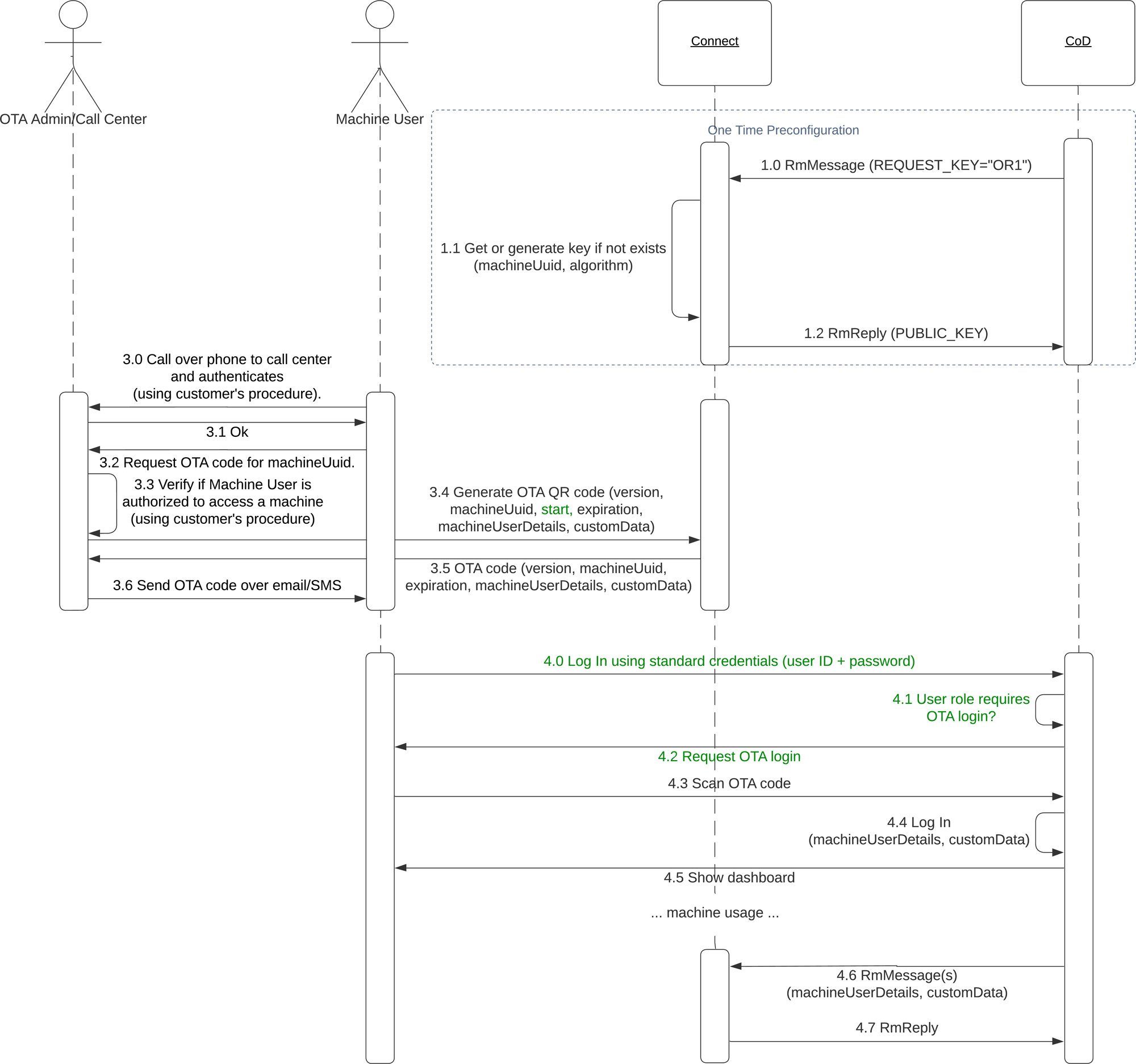
The parameters a Call Center or an Administrator can enter in Connect when generating the OTA QR code are:
Tenant
Prefilled user — a list of users synchronized using Machine User Management
Machine user role
Machine user ID
Time zone
Start date
Valid for (d:hh:mm) — Determines how long the generated code is valid from when it was generated. The value can be anything from 1 minute to 7 days. The user interface shows when the OTA code expires. The Call Center or Administrator can generate several codes for the next 7 days.
There is also an option to add custom data
The parameters a Call Center or an Administrator can enter in Connect when generating the OTA short code are:
Tenant
Prefilled user— a list of users synchronized using Machine User Management
Machine user role
Machine user ID
When the Call Center or Administrator has generated the OTA code, the code is shown in the Connect user interface and can be shared with the user.
Important
Codes are generated only for a particular machine.
An alternative solution is to obtain OTA shortcodes via the REST API. Currently, OTA QR codes are not supported in the REST API.
Reach out to the PayComplete™ R&D department, Connect team if you need the REST API specification.
Using OTA for multi-factor authentication
This is the procedure for multi-factor authentication to enhance security when a user signs in to Connect on-Device.
Sign in to Connect on-Device with your user ID and password.
If your user role requires OTA sign-in, go to the page showing the machine UUID and select the QR code link to Connect.
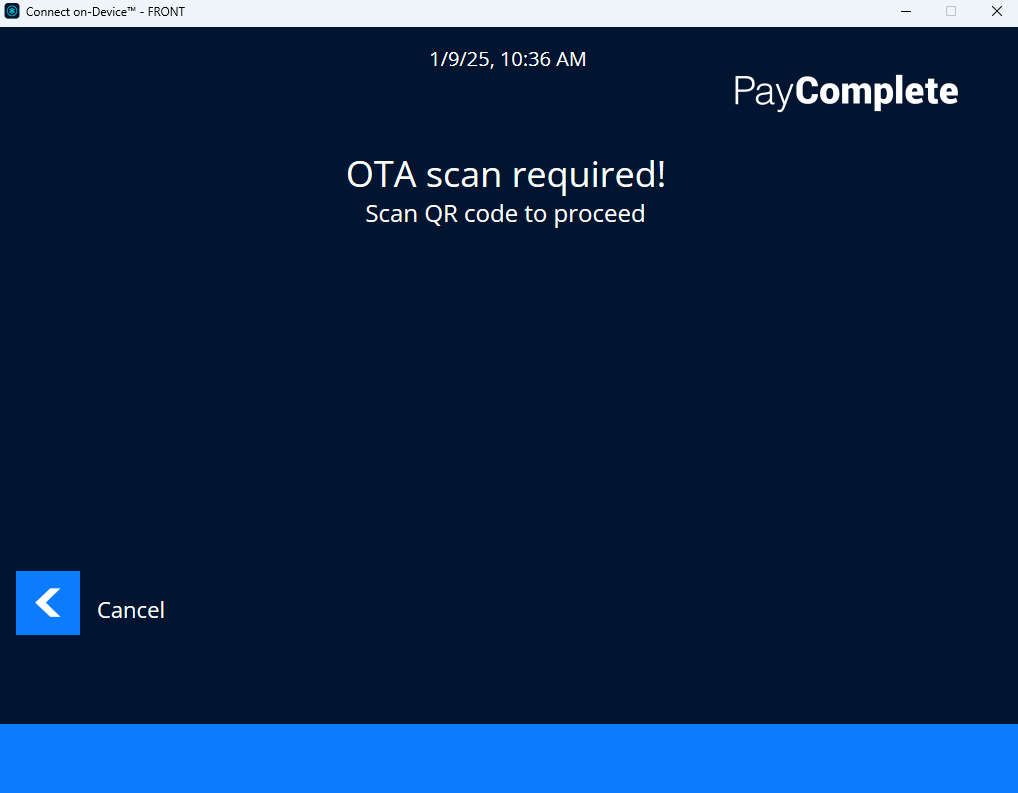
Scan the QR code.
If your machine-user ID and machine-user role match the OTA code, you are signed in to the device.