License handling
Use the License handling dialog box to manually upgrade Connect on-Device licenses.
Prerequisites: You need an account with the following permissions:
OPERATOR_VIEW
SERVICE_MODE
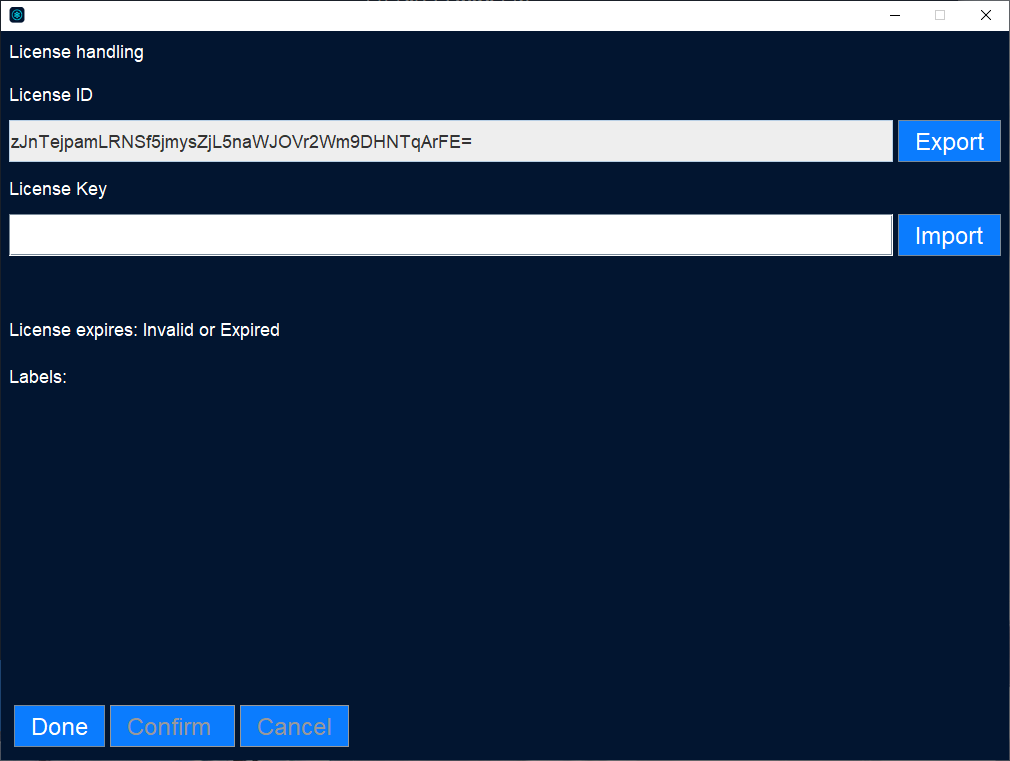
UI item | Description |
|---|---|
License ID | Shows the ID generated from the machine’s MAC address and a number of other hardware parameters. The license is closely related to the machine hardware and unique for each machine. Select export when you want to export the License ID so that you can send it to your PayComplete™ representative to request a license key. |
License key | The license key contains information on the license level (FULL, ENTERPRISE, and so on). There are two optional ways to enter the license key in the License handling dialog box:
Pasting the license key text string is available from Connect on-Device version 3.18.0. |
License expires | Shows the date from which the license is no longer valid. |
Labels | Shows the license level (FULL, ENTERPRISE, and so on). |
Done | Select to save the changes and close the dialog box. |
Confirm | Select to verify that you want to upload the license key to the machine. |
Cancel | Select to close the dialog box without saving the changes. |
See also