Receipt Builder Printer settings
Use Printer settings to configure how a receipt is rendered from within Receipt Builder.
Use Print server port and Print server host to set up communication between Receipt Builder and the print server.
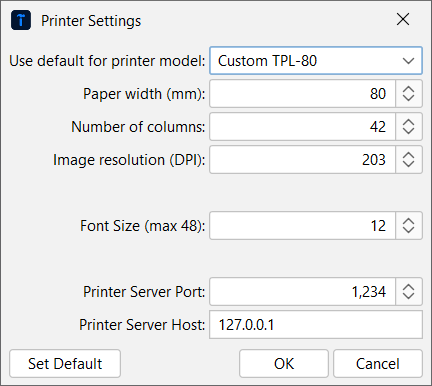
UI item | Description |
|---|---|
Use default for printer model | Select printer to use when testing how an example receipt turns out when printed. When you select a default printer, the paper width, the number of columns, and the image resolution for images used in the receipt are automatically filled in. |
Paper width (mm) | Specify the paper width to use for the example receipt. |
Number of columns | Specify the number of columns allowed in the example receipt. |
Image resolution (DPI) | Specify the image resolution in dots per inch (DPI) for images used in the example receipt. |
Font size (max 48) | Specify the font size to change the text size in the example receipt. Font size doesn't affect the font size in an actual receipt. |
Print server port | Specify the port the print server listens to when communicating with Receipt Builder. |
Print server host | Specify the IP number or network name of the computer running the print server. If Receipt Builder and the print server are running on the same computer, enter |
Set default | Select to save the settings as default when printing from within Receipt Builder. |
OK | Select to confirm the configuration and close the dialog box. |
Cancel | Select to discard the configuration and close the dialog box. |