View Log
Use View Log to display a system log listing all events that have occurred in the system. The latest events are presented at the top of the list.
Tip
For information on how to access the system log view, see Opening the system log (View Log).
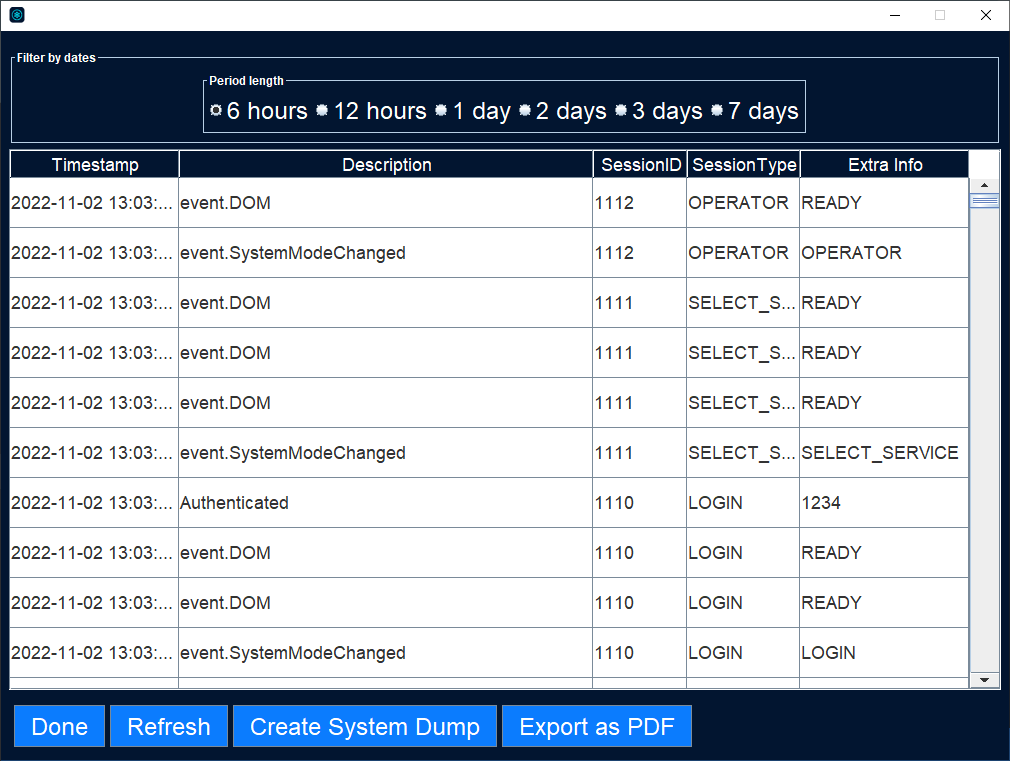
UI item | Description |
|---|---|
Timestamp | Displays the time the event occurred. |
Description | Displays a description of the event. |
Session ID | Connects the event to a session. For more information, see below. |
Session Type | Displays the following information on the session:
|
Extra Info | Additional information about the event. Some events have more information than can be displayed. In that case, a button is shown. Click the button to display the full information in a new window. |
Done | Select to close the log view and return to the Operator view. |
Refresh | Select to update the log view and displays events that have taken place after the log window was opened. |
Create System Dump | Select to create an information dump of the Connect on-Device application. This dump can be used by developers to trace errors. Use this function for error reports. The error report file is placed in the Connect on-Device directory. |
Export as PDF | Select to export the current log to a PDF file. The file is saved in the Connect on-Device directory with the current date. |