Editing the user identification settings
You edit the identification settings when you want to change how the user authenticates when signing in.
In the navigation pane, select Identify and edit the identification settings.
Select OK to save the changes.
Changing authentication methods
Use this procedure to change how the user authenticates when logging in.
In the navigation pane, select Identify.
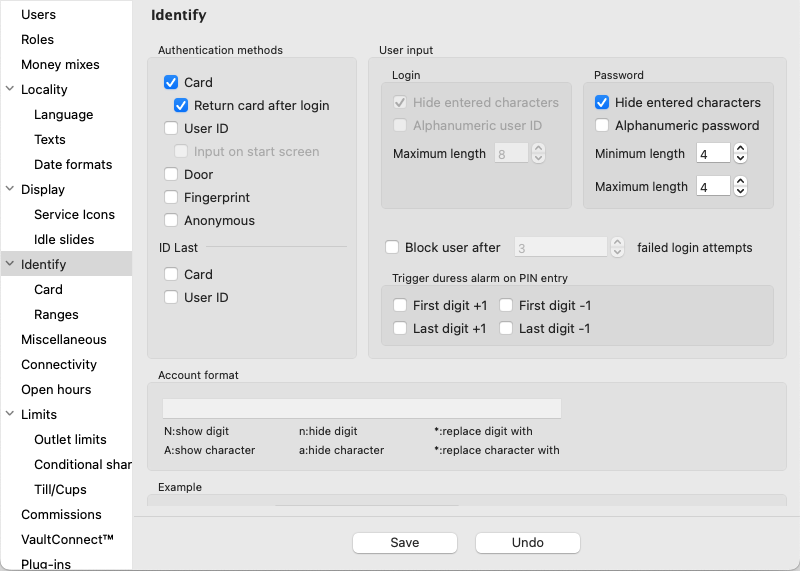
Select the method of authentication. The options are:
Card
User ID
Select Input on start screen to have quick access to the login screen.
Door
Anonymous
Note
You can combine User ID and Card.
In the ID last field, select Card or User ID for identification afterwards, for example, at deposit.
Click Save to save the changes.
Tip
Click Undo to discard unsaved changes.
Changing user login input methods
Use this procedure to change how the user can enter user name and password when signing in.
In the navigation pane, select Identify.
In the Login field, select Hide entered characters to exchange an inserted character with a sign.
Select Alphanumeric user ID to allow an alphanumerical login name.
Enter the maximum length of the login name in the Max length field.
In the Password field, select Hide entered characters to exchange an inserted character with a sign.
Select Alphanumeric user ID to allow alphanumerical passwords.
Enter the minimum and maximal password length in the Min length and Max length boxes.
Select Block user after to block a user after the selected number of failed login attempts.
Enter the number of attempts a user can fail to log in before being locked out of the system.
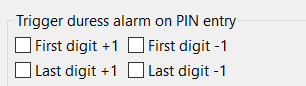
Edit the duress or panic alarm settings.
 Example 29. Example
If First digit -1 is selected - if the PIN starts with a zero, the user has to start with the digit 9 to trigger duress alarm.
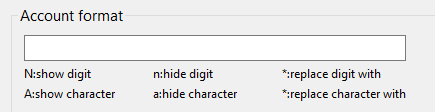
In the Account format field, select between showing or hiding digits or characters. Hidden characters are replaced with an asterisk (*).
 Example 30. Example
Example: In the field for Account number, the user can enter digits and characters. The selections done in Account format is displayed in Formatted number.

Click Save to save the changes.
Tip
Click Undo to discard unsaved changes.
Changing card identification settings
Use this procedure to change the card identification settings.
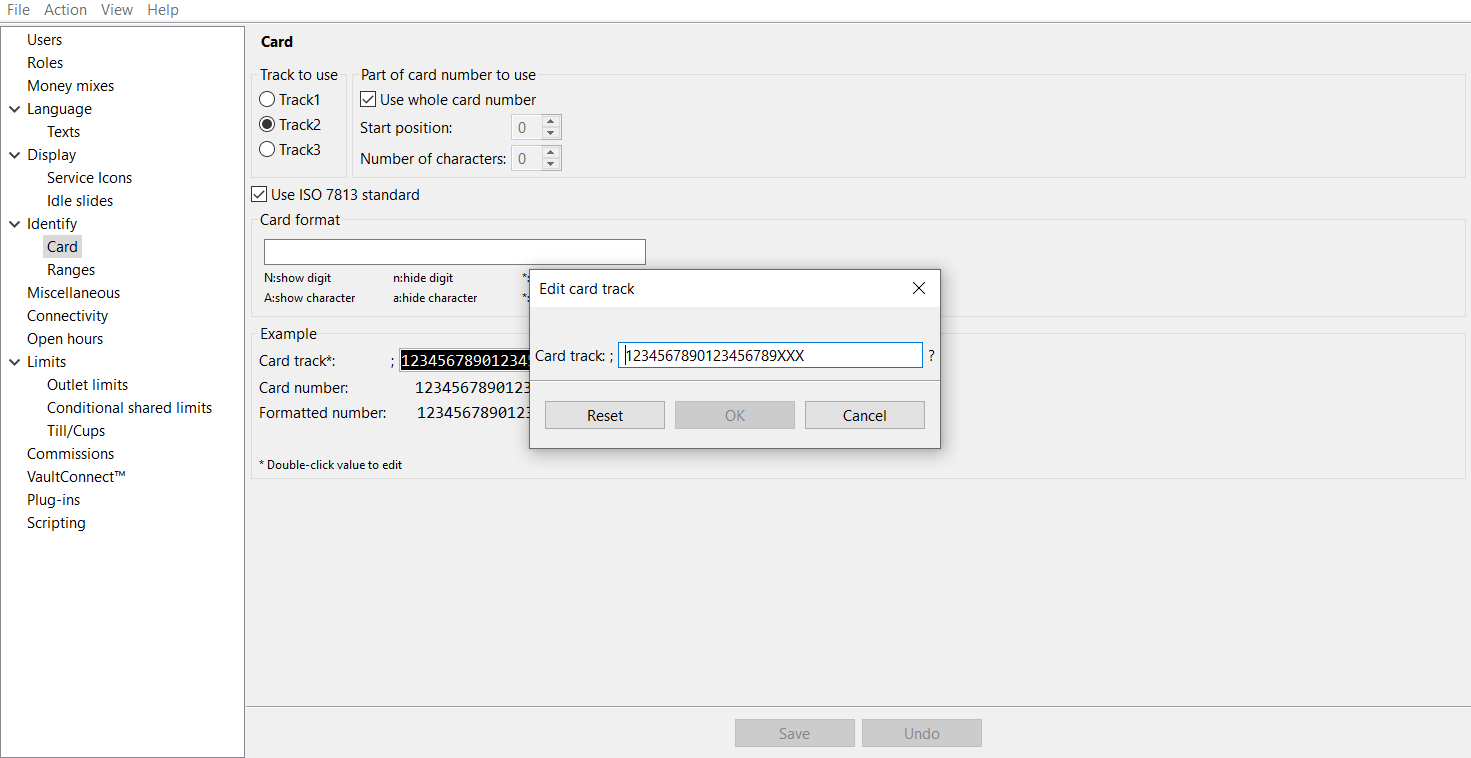
In the navigation pane, expand Identify and then click Card.
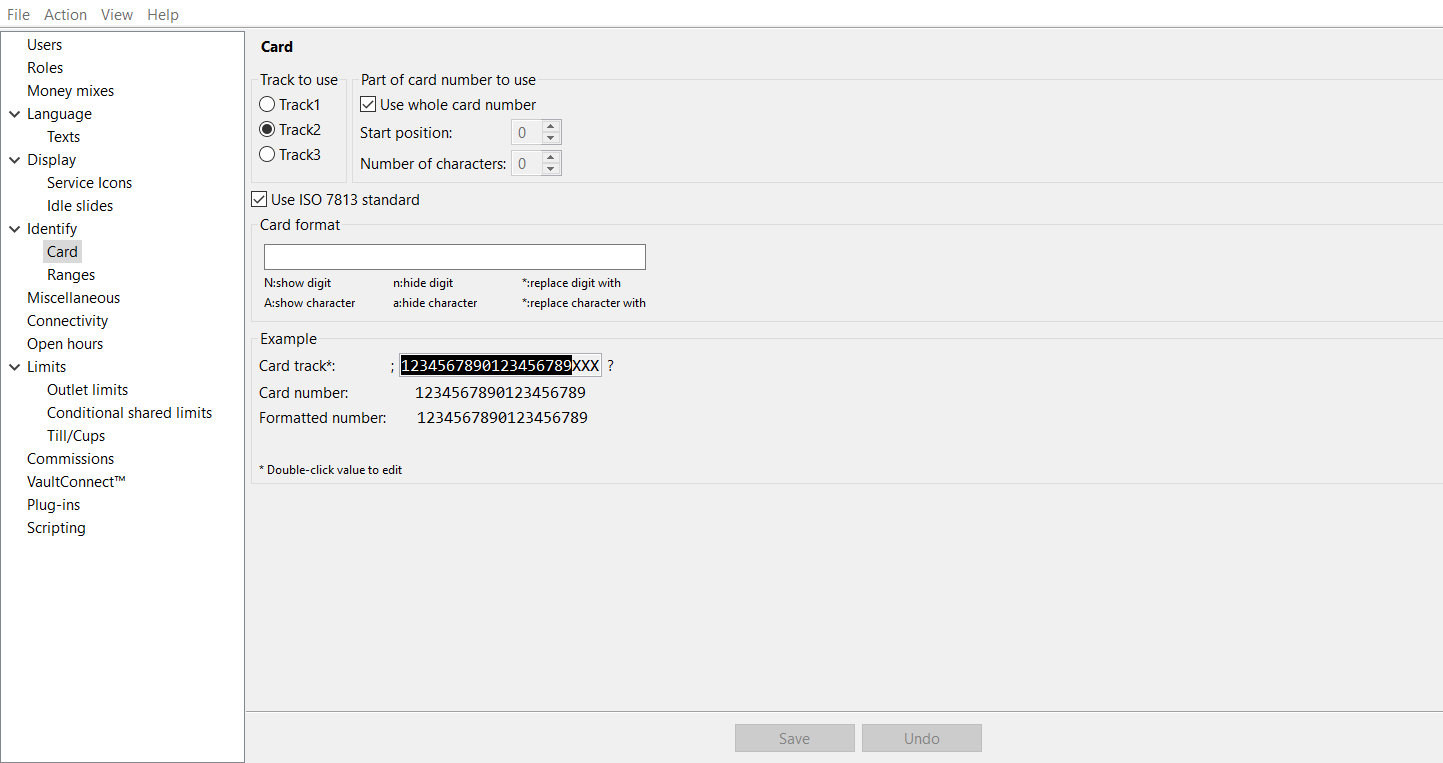
Select which track to use.
In the Part of card number to use area, select which part of the card number to use.
If applicable, select Use ISO 7813 standard.
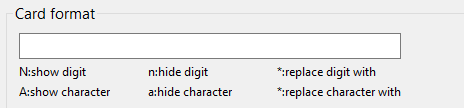
In the Card format area, select between showing or hiding digits or characters. Hidden digits and characters are replaced with the star sign: *.
Note
Digits and characters entered in the Card Format box are displayed in the Formatted number box.
Click Save to save the changes.
Tip
Click Undo to discard unsaved changes.
Editing identification ranges
Ranges is a setting for machines without a user database. A range is a minimum and a maximum value. The entered card/account must be larger than (or equal to) the minimum value and smaller than (or equal to) the maximum value. The range check is made on the currently entered number. No prefix or format string is applied before the range check.
In the navigation pane, expand Identify and then click Ranges.
To add a new range, click Add.
To remove a range, select the row with the range and click Remove.
Click Save to save the changes.
Tip
Click Undo to discard unsaved changes.
A bank wants to accept cards issued at the bank only. If the cards all begin with 8420, the range should be: min: 84200 00000 00000 00000 00000 max: 84209 99999 99999 99999 99999
Changing a user's door identifier settings
Use this procedure to change how the user signs in using door identifiers.
Note
Valid for CDS-820J/L.
Door identifiers are primarily used for CIT staff that need to be signed in by using a key when, for example, emptying boxes or performing service operations.
In the navigation pane, select Users.
Select the user whose settings you want to change.
Select Edit.
Select the browse button (...) next to the Doors box.
Select one or several door identifiers to use for signing in.
Select OK to confirm the selection of door identifiers.
SelectOK to save the changes.