Setting a user password
You set a user password to prevent unauthorized use of the system.
In the navigation pane, select Users.
Select the user whose password you want to set.
On the General settings tab, in the Password settings field, enter a password that meets the requirements.
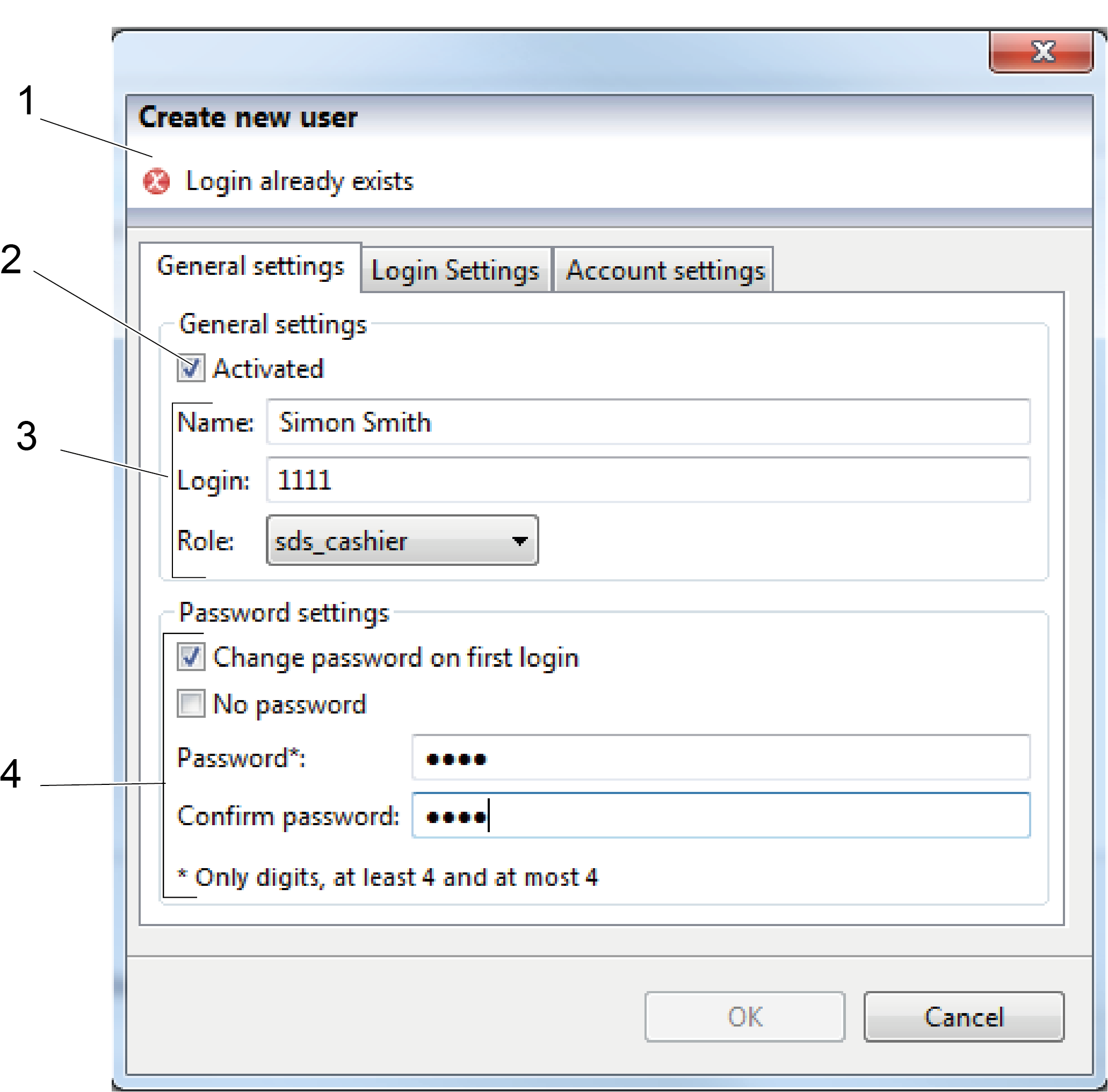
1. Area for information and warnings 2. Activated or not 3. General settings 4. Password settings
Confirm the password by entering it once more
Select Change password on first login to force the user to enter a personal password at first login.
Click OK.
Note
To prevent unauthorized use of the system, do not use any personal information when selecting passwords.
You can select No password to give users access to the system without entering a password. This is not recommended!
To avoid unauthorized access to the system, encourage users not to use any personal information when selecting a new password.
Enabling card login
You enable card login to give the user permission to log in using a card as an identifier.
In the navigation pane, select Users.
Select the user whose login you want to edit.
On the Login settings tab, select Enable card login to authorize the user to log in to the system using card identification.
In the Identifier box, enter the card identification code.
Click OK.
Enabling door login
You enable door login to give the user permission to open a device door.
In the navigation pane, select Users.
Select the user whose login you want to edit.
On the Login settings tab, select Enable door login to authorize the user to open a device door.
Click the Doors option button to display a list of available doors.
Use the > arrow to give the user permission to open the selected device door. Use the < arrow to remove the permission to open the selected device door.
Click OK.
Note
You must start Connect on-Device once before enabling the door login. The reason is that Connect on-Device reads the log files to determine which doors are available.