Maintenance log
Prerequisites:
Connect on-Device version 3.42.0 or later.
The user role that collects the data must have the MAINTENANCE_LOG permission.
When a technician performs maintenance on a machine, it presents an opportunity to collect data on the lifecycle of both the machine and its components. The technician registers the collected data in Connect on-Device. Connect on-Device then sends the registered maintenance data to Connect. The maintenance events are stored in the Connect database. In the Connect user interface, you extract the information as metadata for the machines.
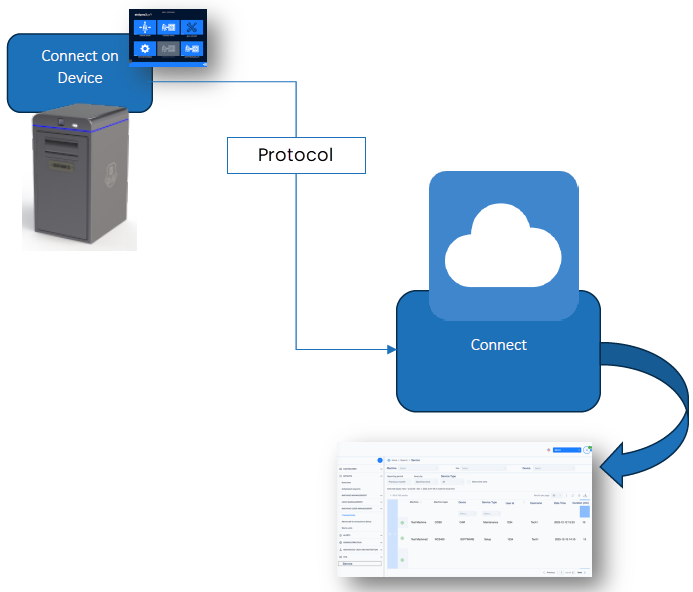
This is what the Maintenance log includes:
MaintenanceLog number – A unique ID (UUID) for the maintenance log.
Components – The name of the device. The names can be, for example: 'CAM', 'CIMA', 'HCM', 'SOFTWARE', 'OTHERS'.
Related machine – The UUID of a connected machine.
Maintenance reason – The options are: Maintenance call or Scheduled maintenance.
Maintenance type – These are examples: Maintenance, Replacement, Reparation, Setup.
Duration of the maintenance in minutes
DateTime
Comment – This is a free text field
User ID – The technician's CoD User identifier.
Counter machine - Coin, note, and product counters. Machine and device life-time counters.
Session UUID – The unique identifier for the CoD User session.
Custom data – This is not yet in use. It's message data for future purposes.
Some information is automatically included, and some of the information needs to be registered by the technician.
The data gives you information about, for example:
The average real lifetime of devices
The average frequency of
maintenances
repairs
other maintenances
The location of machines where problems recur
When the next maintenance should take place (maintenance forecasting)
Registering data for the maintenance log
As a technician, when you have performed maintenance on a machine, you want to document the actions you have taken.
Sign in to Connect on-Device.
Select MAINTENANCE LOG.
Select Add.
Select component.
You can select the machine and any of the devices configured on the machine, software, or 'Other'.
Select Next.
Enter the number of minutes it took to complete the maintenance.
Select Enter.
Type a maintenance comment.
Select Enter.
Select the maintenance reason.
The maintenance reason you select depends on whether the maintenance was done per request from a customer due to an issue, or if it was a planned maintenance. You can edit the available maintenance reasons in a file....
Select Next.
Select one of these options:
Edit – Select to edit the current maintenance entry.
Add – Select to add another maintenance entry. You use this option to register multiple issues.
Confirm – Select to complete the registration and send the data to Connect.
Maintenance log in Connect
In Connect, you need the 'Mainteance view' permission to view the Maintenance log. You can filter the Maintenance log on these criteria:
From/To date
Maintenance type
Maintenance reason
Machine
Site
Device (Component)
Session UUID
The Maintenance view has two sub-views:
Maintenance actions – Groups the maintenance logs by work unit
Session report – Groups the maintenance actions by session
See also